Auto Animation
Auto Blink and Auto Breathe take care of the two things a character does all the time and an animator never wants to key by hand, and Look At Target keeps the eyes on a camera or an object. All three write ordinary keys, each press on an animation layer of its own, so the result is yours to mute, re-weight, edit or delete like any other layer. All three are in the rig node's Auto Animation folder.
Auto Blink
Add Auto Blink keys face_Eye_Blink_L and face_Eye_Blink_R over the Frame Range, on a layer named AutoBlink (then AutoBlink2, and so on). It's one undo step, and it's greyed out on a body-only rig.
- Profile uses iClone's own Auto Blink profiles: Normal, Nervous, Speechless, Charming and Child. They differ in how often the character blinks, how long a blink lasts, and how often blinks come in quick runs.
- Clip Blinks decides what happens to blinks already in the animation. Keep leaves them, makes an additive layer, and skips any blink that would land right on top of one of the clip's. Replace makes an override layer, so inside the Frame Range the eyelids blink only when Auto Blink says so; outside it, the clip's own blinks are untouched.
- Seed gives a different pattern with the same profile. To try another, delete the layer, change the Seed and press again.
- Frame Range follows the playback range until you type your own. Right-click it and choose Revert to Defaults to make it follow the playback range again.
Use Keep on a clip whose face already performs (a dialogue take), and Replace when the clip's blinks are missing, too regular, or wrong for the shot. To see exactly what was written, make the AutoBlink layer active and press Show Face Keys; see Face Tools.
Auto Breathe
Add Auto Breathe keys breathing onto an additive layer named AutoBreathe (then AutoBreathe2, and so on). It moves body controls only, so it needs no facial rig and works on a body-only rig too.
- Profile: Calm is about 12 breaths a minute and shallow, Normal about 16, Heavy about 30 and deep with the shoulders lifting, Sleeping about 10, slow and deep, from the ribs.
- Depth scales the breaths: 1 is the profile as it comes, 2 twice as far. The layer's weight scales them again, and you can key it to make the breathing build or settle.
- Shoulders, on by default, lets the clavicles lift the shoulders at each inhale. The arms hold the hands where the clip puts them, so as the shoulders rise the elbows give a little: a couple of millimetres on Normal, around a centimetre on Heavy. On a character whose arms should be still that reads as fidgeting, so turn Shoulders off and the shoulders and elbows are left to the clip.
- Seed and Frame Range work as they do for Auto Blink.
What moves: the chest control tilts back and lifts a little, the two ribcage controls (L_RibsTwist, R_RibsTwist) move forward and up, and on Calm, Normal and Heavy the clavicles lift the shoulders, unless Shoulders is off. The neck turns back by the chest's tilt, so the head keeps its aim, and the hands stay where the clip holds them. Only whole breaths inside the Frame Range are written, so the layer adds nothing outside them.
Look At
The eyes can aim at two kinds of target, and the Look At slider on the Eyes gear chooses between them.
- Each eye has its own small cross in front of it, inside a yellow frame. The crosses ride with the head and normally sit where the clip puts the gaze, so the clip's eye motion lives on them. Animate glances here.
- The yellow three-ring control, about a metre in front of the face, stays put in the world. Park it on another character, an object or the camera, and the eyes stay on it whatever the head and body do.
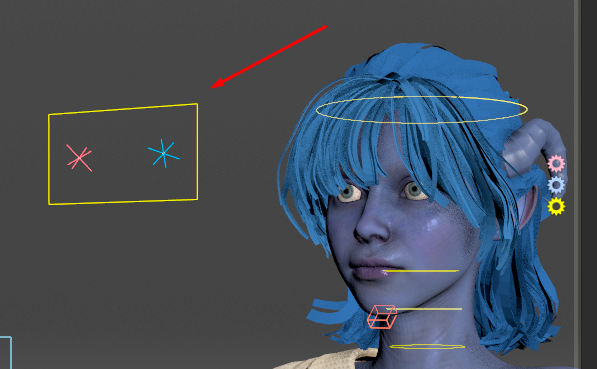
At 0 the crosses stay with the clip and the yellow target does nothing. At 1 the crosses sit on the yellow target, the eyes look at it, and the head and chest turn to help, as much as Head Weight and Body Weight say. In between, they sit partway. So moving the slider moves the crosses back and forth; that's intended, not a glitch.
Why two targets? They do different jobs, and neither can do both. A target that rides with the head can't steer the head without chasing itself; a target fixed in the world would drag the eyes against every head move. So Look At blends from the first to the second.
Compared with iClone
iClone has no Look At slider. You turn Look At on by keying a target on the character's Look at Object track, and a transition handle on that key sets how many frames the turn takes. Here, keying Look At from 0 to 1 over those frames does the same job. You can see the blend because this rig draws the eye crosses: they slide from where the clip has them onto the yellow target, and halfway through the blend they sit halfway.
The rest of the Eyes gear follows iClone's Look At panel, with 0 to 1 in place of 0 to 100:
iClone's Look at Camera and Look at Object are Bake Look At Target here, below.
Looking at a camera or an object
The Look At tab in the rig node's Auto Animation folder puts the yellow target on something in your scene for you, at every frame, so the eyes follow it however it moves.
- Set Target to the camera, or to any other object. The eyes aim at its origin. For a SOP node, they aim at the centre of its Group; on another character's skeleton, a group such as
@name=Headpicks one joint. - Set the Frame Range, and the Transition: the frames the eyes take to turn onto the target at the start and back at the end.
- Press Bake Look At Target.
The yellow target is keyed onto the Target at every frame of the range, and Look At is keyed on, on a new layer named LookTarget (then LookTarget2, and so on). The head and chest turn by the Eyes gear's Head Weight and Body Weight, as when you move the target by hand. Outside the frame range the layer does nothing. It works in the animate state or not, as one undo step.
To look just past a camera's lens rather than into it, set a small Offset, such as 0 0.05 0: it moves the aim point in the Target's own frame.
Nothing stays linked. If the camera or object moves afterwards, delete the layer in the Animation Layers pane and press the button again.
LOP cameras
Target takes an object-level camera (/obj). A camera that exists only in LOPs has no object to pick: aim the yellow target by hand, or add an object-level camera that follows it.
Following a camera live in the animate state
If you animate a camera inside the animate state, the yellow target can follow it live, with Houdini's own constraints instead of a bake:
- In the viewport's camera menu (top right, No cam), choose New Camera. It is made where you are looking from, inside the rig node.
- Turn Look At up to 1 on the Eyes gear.
- In the animate state parameters, Constraint tab, set Constraint to Offset, Offset to None (so the target sits on the camera rather than keeping its distance) and Components to translate only.
- Select the yellow target, Shift-select the camera's control, and press H.
The eyes now follow the camera as you animate it, in the viewport and in the render. The constraint's Blend is keyable, and Shift-dragging a frame range on the timeline before pressing H limits it to those frames.
Two limits. A camera made this way lives in the animate state only: you can look through it there, but it is not exported to /stage, so for the camera you render with, use Bake Look At Target. And the character's own hands, arms and head cannot drive the yellow target, because Look At turns the chest and head toward it: Houdini refuses that constraint and the target simply stays where it is.